I removed the screen from my laptop—and it’s now more useful than before.
Anyways, I recently got my hands on a used thinkpad X230 for around 60$.
The machine is great, the keyboard even better, but the TN panel is genuinely unusable.
For a while, I used it like a laptop as intended, but I can only do so much with a TN Panel whose max brightness is my Pixel’s 10% brightness.
Instead, I decided to cut my losses and just remove the display altogether, and use the thinkpad as a keyboard with my monitor.
The Hardware
Doing this was pretty simple, I just had to open up the back of the laptop, remove the hinge screws, and then slowly disconnect all the wires before removing the display assembly.
Additionally, I changed the Wi-Fi card to an atheros one for good measure. (God bless Libreboot)
Main issue with this, was that the Thinklight is literally impossible to remove from the casing, so I kinda had to snap that wire out.
I also removed the two wifi antennae that are glued to the display casing, and kept it outside so wifi continues to work properly.
I kept the webcam too, removed from the case and double tape’d to my monitor - since somehow this ancient laptop seems to have a better camera than my modern laptop.
After doing all this, and very-safely electrical taping all the extra wires if i ever decide to put a new display on this, I got a think-slab :D
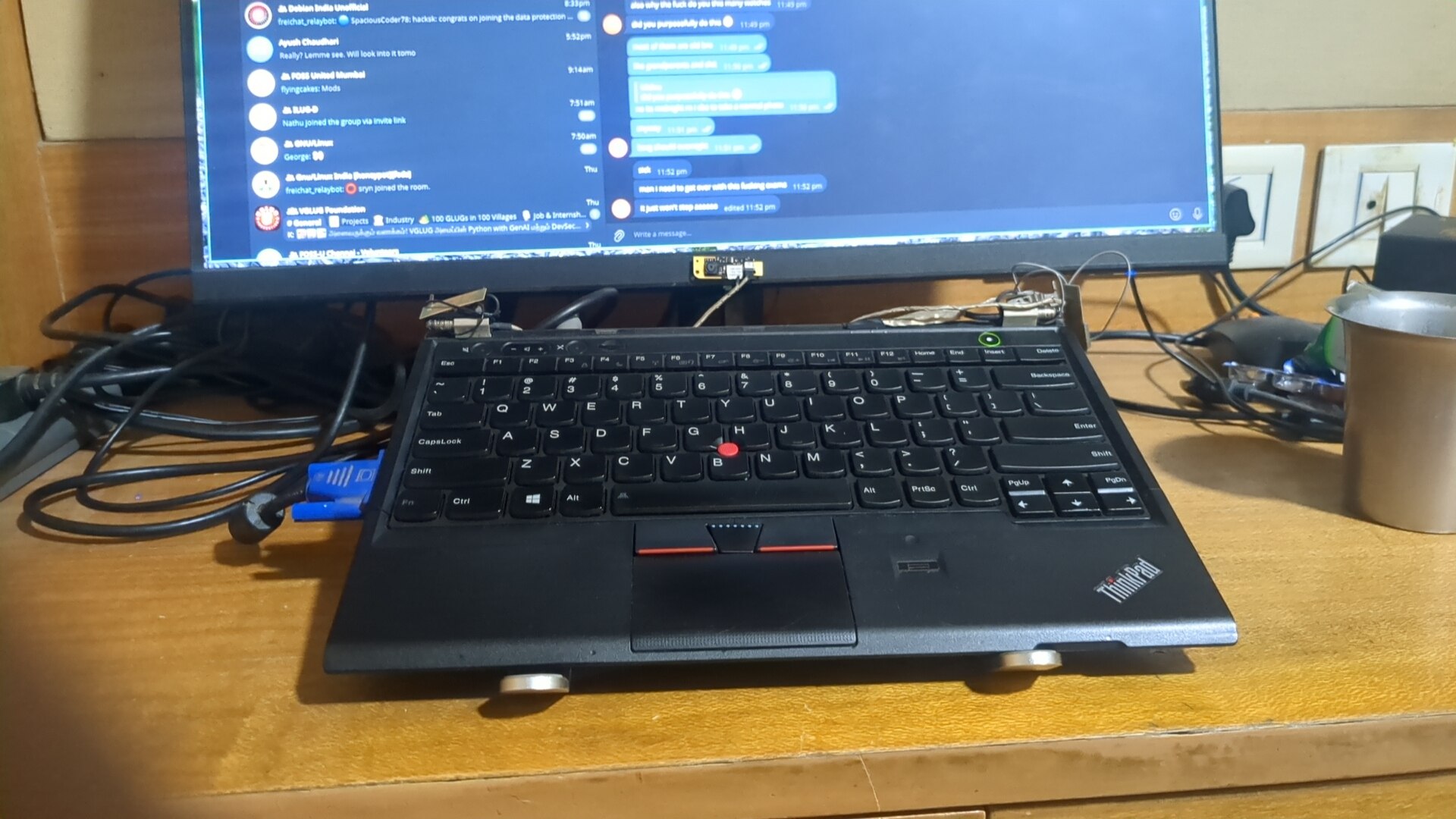
However, I had to add a few cmdline arguments on grub to make it work.
/etc/default/grub:

GRUB_CMDLINE_LINUX_DEFAULT="quiet iomem=relaxed i915.modeset=1 video=LVDS-1:d video=VDA-1:e"
The first 3 are common grub parameters that you always have, while the last 2 are the special ones you need to add the :d parameter disables LVDS-1 (internal display), and the :e parameter enables VDA-1 (in my case, the external display)
An update-grub later, everything magically started
appearing on my monitor!
The software
This worked great for research and other random stuff I did, but a laptop from 2012 can only do so much in terms of computing.
To remedy this, I decided to just use the thinkpad keyboard with my modern laptop using software KVM. Since my monitor has both VGA and HDMI, I was able to connect my modern laptop to the HDMI port, and the thinkpad to VGA.
Though I was just planning on using barrier like I did year’s ago, I decided to go with Lan-Mouse this time.
It is a rust-based application similar to synergy and barrier, but with a proper gtk UI and supposedly better performance.
Now, since I have a wireless card that’s older than me on the thinkpad, I had to do some ethernet magic for lan mouse if I wanted any sort of real performance. Software KVM is a high-bandwidth task after all.
So I connected an ethernet cable between the two laptops, and set it up as follows
# On Modern laptop
nmcli con add type ethernet ifname enp2s0 ip4 192.168.50.1/24
# On Thinkpad
nmcli con add type ethernet ifname eno0 ip4 192.168.50.2/24
And magically, I have a Gigabit connection between the two laptops for Lan-Mouse to work through. Lan mouse is pretty intuitive to setup, so im not covering it here.
In conclusion, this one day’s work turned out pretty well for me. I now have a speedy “slabtop” for any research or minor work that I have, and it doesn’t even take 5 minutes for this setup to convert into a high-performance workstation either.
I’m still using the X230 without lan-mouse for home usage, when I’m too lazy to get my laptop out of my bag, but this setup really helps me when I need to get some real programming work done, which is 10x harder without such a comfy keyboard like that of the X230.